Wireless drawing tablets make digital art more flexible by reducing cable clutter without giving up pressure-sensitive pen control. The right model can also make photo editing, illustration, note-taking, and remote creative work more comfortable.
We selected 10 wireless drawing tablets across compact, medium-size, budget-friendly, and feature-rich designs so you can compare pen performance, active area, connectivity, shortcuts, and software compatibility before buying.
Best 10 Wireless Drawing Tablets Picks for 2026
Best Compact Pick

- Battery-free pen with 4,096 pressure levels
- Bluetooth and USB-A connectivity
- Includes software and online training
Best For: Students, teachers, and portable creative work
Best Ergonomic Design

- Roomy 10 x 6.25-inch working area
- Bluetooth, USB-C, and mobile support
- Up to 24 hours of battery life
Best For: Artists seeking comfort and a clean, portable setup
Best for Shortcuts

- Central dial plus eight customizable keys
- 16,384 pressure levels with tilt support
- Bluetooth 5.0 and USB-C connectivity
Best For: Shortcut-focused digital artists and designers
Best Large Work Area

- Expansive 13.6 x 8.5-inch active area
- Bluetooth 5.0 with wired connectivity
- Mini LCD and six programmable keys
Best For: Detailed illustration, modeling, and photo editing
Editor's Choice

- Battery-free EMR pen with 4,096 pressure levels
- Bluetooth or USB-A connectivity
- Four ExpressKeys and included software access
Best For: Creators, students, and teachers wanting a roomy, versatile tablet
Best for Everyday Use

- Portable 6.3-by-3.9-inch drawing area
- Six customizable keys plus scroll wheel
- Battery-free pen with Mac, Windows, and Android support
Best For: Beginners and mobile creators who need a compact wired tablet
Best Wireless Controls

- Bluetooth 5.0 wireless connection
- 8,192 pressure levels with 60-degree tilt
- Eight customizable shortcut keys
Best For: Artists and designers seeking wireless freedom and extensive controls
Best Student Pick

- Bluetooth 5.0 wireless or wired use
- Compact 6 x 4-inch paper-like surface
- Battery-free 16,384-level stylus
Best For: Students, beginners, and portable note-taking or sketching
Best Shortcut-Key Value
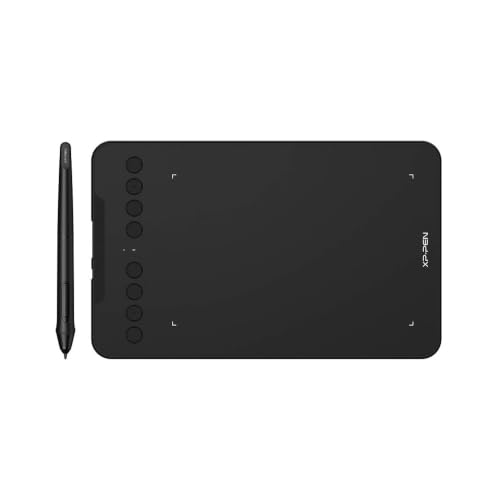
- Bluetooth 5.0 and wired connectivity
- Eight customizable shortcut keys
- Battery-free pen with tilt support
Best For: Creators, teachers, and shortcut-focused workflows
Best for Mobile Creation
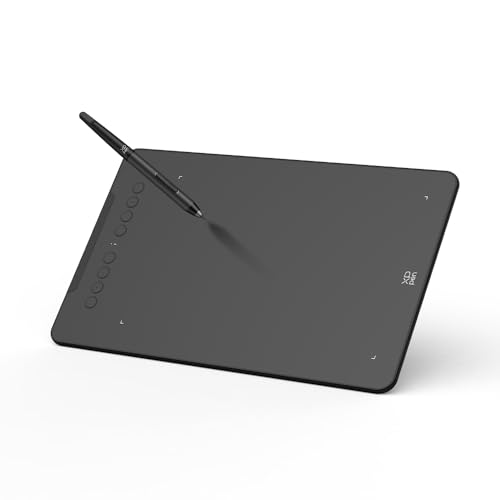
- Bluetooth 5.0 with up to 13-hour battery life
- Adjustable Android active-area mapping
- Eight keys and 60-degree tilt support
Best For: Artists who create on computers and compatible Android devices
Best Compact Pick – Wacom Intuos Small
The Wacom Intuos Small is a compact wireless drawing tablet for creators who want dependable pen control without a large desk footprint. Its battery-free pen, Bluetooth connectivity, and broad software compatibility make it practical for digital art, photo editing, note-taking, and online teaching.
Best For: Students, teachers, beginners, and creators who prioritize portability and straightforward controls.
Pros:
- Battery-free pen with 4,096 levels of pressure sensitivity for natural-feeling strokes.
- Bluetooth or USB-A connectivity supports flexible use at a desk or away from one.
- Four ExpressKeys provide convenient shortcuts, and software and training are included after registration.
Cons:
- The 6 x 3.7-inch active area is smaller than the other tablets in this roundup.
- It has fewer pressure levels and shortcut controls than the newer alternatives listed here.
The Intuos Small is a sensible choice when compact size, established brand support, and simple wireless operation matter more than a spacious drawing area or extensive controls.
Best Ergonomic Design – HUION Inspiroy Frego Medium
The HUION Inspiroy Frego Medium is a wireless drawing tablet with a generous 10 x 6.25-inch work area and a clean, key-free surface. Bluetooth, USB-C, mobile support, and a wrist-rest-inspired edge make it a flexible option for drawing, writing, and sketching across compatible devices.
Best For: Artists who want a roomy, symmetrical tablet with comfortable edges and mobile-device compatibility.
Pros:
- Large 10 x 6.25-inch working area provides room for detailed strokes.
- Bluetooth and USB-C connections support flexible desktop and mobile setups.
- Battery-free 8,192-pressure-level pen includes tilt support and two programmable side buttons.
- Built-in battery offers up to 24 hours of use after a full charge.
Cons:
- The minimalist design omits physical shortcut keys on the tablet.
- Bluetooth support has more specific operating-system requirements than wired use.
Choose the Frego Medium if comfort, portability, and cross-device flexibility are priorities. Its uncluttered surface suits users who prefer keyboard or software shortcuts over a row of tablet buttons.
Best for Shortcuts – GAOMON WH851
The GAOMON WH851 is a wireless drawing tablet built for users who rely on tactile controls. Along with Bluetooth 5.0 and USB-C connectivity, it combines a central dial with eight customizable keys, while its battery-free pen provides high pressure sensitivity and tilt support.
Best For: Digital artists, designers, and editors who want quick access to zoom, brush, scrolling, and other shortcuts.
Pros:
- Central dial and eight programmable keys can speed up repetitive tasks.
- Battery-free pen offers 16,384 pressure levels and 60-degree tilt support.
- Bluetooth 5.0 or USB-C wired connections provide setup flexibility.
- Built-in battery supports up to 18 hours of operation.
Cons:
- The 8 x 5-inch active area is smaller than the larger HUION models.
- Supplied compatibility details specify Windows, Android, and Mac, so users should verify their exact setup.
The WH851 stands out for workflow control rather than maximum canvas size. Its dial and shortcut keys make it particularly appealing for users who want to reduce reliance on menus and keyboard commands.
Best Large Work Area – HUION Inspiroy Giano
The HUION Inspiroy Giano is a large wireless drawing tablet designed for detailed work on bigger monitors. Its 13.6 x 8.5-inch active area, Bluetooth 5.0, mini LCD status screen, and programmable controls suit illustration, painting, 3D modeling, and photo editing.
Best For: Artists and designers who want a spacious canvas-matched work area for detailed creative projects.
Pros:
- 13.6-inch active area provides substantial room for precise lines and large gestures.
- Bluetooth 5.0 enables wireless connection to compatible Mac or Windows computers.
- Battery-free pen includes 8,192 pressure levels, 60-degree tilt support, and felt nibs.
- Mini LCD screen and six programmable shortcut keys help monitor and customize workflows.
Cons:
- At 1.15 kg, it is considerably less portable than the smaller tablets.
- Its large footprint may be excessive for compact desks or casual note-taking.
The Giano is the strongest fit when drawing space is the deciding factor. It offers the broadest active area in this group, along with useful status and shortcut features for extended creative sessions.
Editor's Choice – Wacom Intuos Medium
The Wacom Intuos Medium is a strong choice among wireless drawing tablets for creators who want a roomy active area, reliable pen control, and the flexibility to work either over Bluetooth or with a USB-A cable. Its battery-free EMR pen and broad software compatibility make it suitable for drawing, photo editing, design, and document markup.
Best For: Students, teachers, and creators who want a dependable medium-size tablet with wireless and wired connectivity.
Pros:
- Battery-free pen with 4,096 pressure levels for precise, pen-on-paper-style control.
- Bluetooth and USB-A connectivity support flexible use at a desk or away from it.
- Four ExpressKeys provide convenient shortcuts, and included software and training add value.
- Works with Mac, Windows, and Chromebook devices and a wide range of creative software.
Cons:
- The tablet is not a standalone computer and requires a compatible connected device.
- Its included USB connection uses USB-A, which may require an adapter with newer devices.
Choose the Intuos Medium if you prioritize Wacom’s established pen technology and a larger 8.50-by-5.31-inch active area. It is a practical all-purpose option, though shoppers seeking more pressure levels or a smaller travel format may prefer another model.
Best for Everyday Use – HUION Inspiroy 2 Small
The HUION Inspiroy 2 Small is a compact option for shoppers comparing wireless drawing tablets for everyday drawing, writing, and photo work. Its slim design fits easily in a laptop bag, while the scroll wheel and six programmable keys can make common software commands faster to reach.
Best For: Beginners, students, and mobile creators who value portability, shortcut controls, and Android compatibility.
Pros:
- Compact 6.3-by-3.9-inch design is easy to carry between home, school, and work.
- PenTech 3.0 battery-free stylus is designed for precise control with no noticeable lag or wobble.
- Six programmable keys and a customizable scroll wheel can streamline creative workflows.
- Supports Mac, Windows, Linux, ChromeOS, and certain Android devices.
Cons:
- This is not a standalone device and must be connected by cable to a computer or smartphone.
- The supplied notes do not identify Bluetooth or other wireless connectivity for this model.
The Inspiroy 2 Small makes the most sense when portability and physical controls matter more than a large drawing surface or cable-free operation. Confirm your device and app compatibility before buying, especially if you plan to use it with Android.
Best Wireless Controls – XPPen Deco MW
The XPPen Deco MW stands out among wireless drawing tablets with Bluetooth 5.0, an 8-by-5-inch active area, and eight customizable shortcut keys. Its battery-free X3 stylus adds 8,192 pressure levels and 60-degree tilt support, giving artists more control over line weight and angled strokes.
Best For: Digital artists and designers who want a larger work area, extensive shortcut controls, and broad operating-system support.
Pros:
- Bluetooth 5.0 enables cable-free creative work and a tidier workspace.
- X3 stylus offers 8,192 pressure levels, 60-degree tilt, and precise positioning.
- Eight customizable shortcut keys help replace frequent keyboard commands.
- Compatible with Windows, Mac, Android, ChromeOS, Linux, and major creative applications.
Cons:
- The tablet still includes a USB-A-to-USB-C cable and adapters for connection flexibility.
- It is a pen tablet rather than a display, so you draw while viewing the connected device’s screen.
For shoppers specifically seeking wireless drawing tablets, the Deco MW is the most feature-rich fit of these three. Its combination of Bluetooth, tilt support, high pressure sensitivity, and eight shortcut keys is especially useful for artists with established software workflows.
Best Student Pick – DIGIDRAW TW410
The DIGIDRAW TW410 is a compact option for students comparing wireless drawing tablets for class notes, sketching, and beginner digital art. Its Bluetooth 5.0 connection supports cable-free use, while wired mode is available when you want a faster response for detailed work.
Best For: Students, beginners, and portable note-taking or sketching.
Pros:
- Bluetooth 5.0 wireless and wired connectivity.
- Compact 6 x 4-inch working area and lightweight 250 g design.
- Battery-free stylus with 16,384 pressure levels.
- Paper-like surface and compatibility with Mac, Windows, and Android.
Cons:
- The compact active area may feel limited for users accustomed to larger tablets.
- The remote is sold separately.
- Official driver installation is recommended for smoother operation.
Choose the TW410 if portability and handwriting feel matter most. It offers a student-friendly feature set without requiring pen charging, though larger or more advanced workflows may benefit from a bigger work surface.
Best Shortcut-Key Value – XP-Pen Deco mini7W
The XP-Pen Deco mini7W is a versatile choice among wireless drawing tablets, combining Bluetooth 5.0 with a wired connection and eight customizable shortcut keys. Its battery-free pen also supports tilt response, making it useful for drawing, online teaching, editing, and digital signatures.
Best For: Creators, teachers, and users who rely on customizable shortcuts.
Pros:
- Bluetooth 5.0 and USB connectivity for flexible setup.
- Battery-free stylus with 16,384 pressure levels and 60-degree tilt support.
- Eight customizable press keys for workflow shortcuts.
- Broad compatibility with Windows, Mac, Android, Chrome OS, and Linux.
Cons:
- Its 7 x 4-inch-class format is still relatively compact for large illustrations.
- The listed warranty is one year.
- Wireless operation uses the included USB dongle.
The Deco mini7W is a well-rounded pick when shortcut controls and broad operating-system support are priorities. It suits mixed creative and teaching tasks, while users wanting the newest mobile-mapping features may prefer the V2 model.
Best for Mobile Creation – XP-Pen Deco mini7W V2
The XP-Pen Deco mini7W V2 stands out among wireless drawing tablets for mobile-focused creation. Bluetooth 5.0, a claimed up-to-13-hour battery, eight shortcut keys, and adjustable active-area mapping are designed for drawing on compatible Android devices as well as working on computers.
Best For: Digital artists who want mobile compatibility and adjustable screen mapping.
Pros:
- Bluetooth 5.0 wireless connection with up to 13 hours of continuous work per charge.
- Battery-free pen with 16,384-level pressure sensitivity and 60-degree tilt support.
- App-based active-area adjustment helps match Android screen ratios.
- Eight customizable keys and compatibility with Windows, macOS, Android, ChromeOS, and Linux.
Cons:
- iOS support is limited to ibis Paint, according to the supplied notes.
- The compact 7 x 4.37-inch format may not suit users seeking a large drawing area.
- The product details list a conflicting pressure-sensitivity specification, so confirm the current listing.
The V2 is the strongest fit here for creators who move between a computer and Android device. Its mobile mapping feature adds practical flexibility, while the compact footprint keeps it easy to carry.
How We Picked the Best Wireless Drawing Tablets
We compared the selected models by looking at the features that most affect everyday use: wireless connection options, active drawing area, pressure sensitivity, pen design, shortcut controls, compatibility, portability, and overall value. Battery-free styluses received special consideration because they remove charging interruptions, while Bluetooth stability and wired fallback support matter for dependable workflow.
Specifications can vary by operating system and software, so check the manufacturer’s current compatibility information before ordering. A tablet that works well with Windows may have different shortcut or feature support on macOS, Android, or ChromeOS.
Quick Comparison
- Best for compact setups: Small Wacom Intuos, HUION Inspiroy 2 Small, XPPen Deco mini7W, and DIGIDRAW TW410 models.
- Best for more drawing room: Wacom Intuos Medium and HUION Inspiroy Frego Medium.
- Best for extra controls: GAOMON WH851 and HUION Inspiroy 2 Small, which include convenient shortcut or dial-style controls.
- Best for feature-focused buyers: HUION Inspiroy Giano, with its smart mini LCD feature.
- Best for shortcut-heavy workflows: XPPen Deco MW and Deco mini7W V2, both offering multiple customizable keys.
Key Buying Factors for Wireless Drawing Tablets
Active Area and Desk Space
A larger active area gives your strokes more room and can feel more natural for illustration, but it needs more desk space. Compact tablets are easier to carry and pair well with laptops or smaller workstations.
Wireless Connection and Battery Life
Bluetooth is convenient, but connection reliability matters more than headline range. Look for models with a wired mode or USB option for uninterrupted work, and check whether the tablet or stylus needs charging.
Pressure Sensitivity and Pen Feel
Higher pressure ratings can provide finer control, but pen calibration and software compatibility also affect the experience. A comfortable, battery-free stylus is often more important than choosing the highest quoted number.
Shortcut Keys and Dial Controls
Assignable buttons can speed up zooming, undoing, brush changes, and canvas rotation. A dial or scroll wheel may be particularly useful for artists who frequently adjust brush size or navigate large canvases.
Software and Operating-System Support
Confirm support for your preferred applications, such as Photoshop, Clip Studio Paint, Krita, Illustrator, or other creative tools. Also check whether Bluetooth, shortcut keys, and pressure sensitivity work on your specific computer.
Who Should Buy Which Wireless Drawing Tablets?
Choose a small tablet if portability, a limited desk, or casual editing is your priority. Choose a medium tablet if you make detailed illustrations or prefer broader hand movement. Choose a model with extra buttons or a dial if you want to reduce keyboard dependence. Choose a feature-rich or LCD-equipped option if workflow controls and on-device information are worth paying more for. For beginners, prioritize comfortable pen handling, dependable compatibility, and a sensible price over maximum specifications.